Webrender dashboard
Open Dashboard → Services → webrender:webrender:1. The separate scene:webrender:1 tab exposes scene API controls.
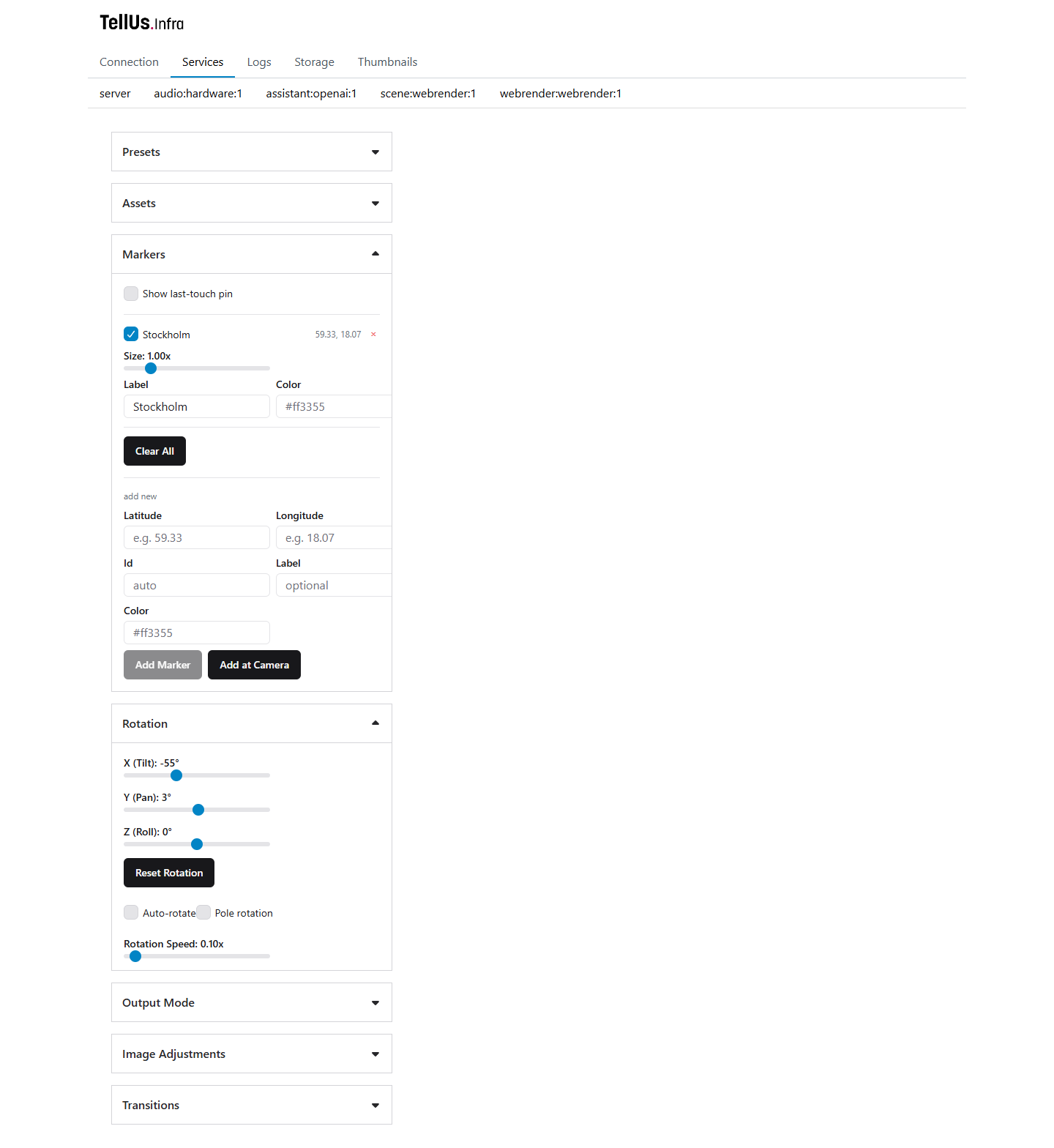
These controls affect the live globe. Expand the relevant section and check the result.
Select a base asset and overlays
Under Assets, choose Base Asset, such as blue_marble or mars. Selection goes through the scene service and updates the assistant's context.
Use Overlays checkboxes and their Opacity sliders on compatible Earth maps. For an unexpected view, load a known base map, disable overlays, and reset rotation.
Rotation and image adjustments
| Control | Effect |
|---|---|
| X (Tilt) / Y (Pan) / Z (Roll) | Adjust orientation. |
| Reset Rotation | Returns rotation to zero. |
| Auto-rotate / Rotation Speed | Enables and sets continuous rotation. |
| Pole rotation | Changes rotation around the sphere's pole. |
| Image Adjustments | Brightness, contrast, and saturation, with reset. |
Disable auto-rotation if a requested camera orientation will not stay put.
Output and transitions
Output Mode offers fisheye, equirectangular, or preview, plus relevant projection settings. Display profiles keep projection local to each output. Check the physical globe and retain the site's calibrated settings.
Transitions sets fade, crossfade, or directional/radial wipes and duration in milliseconds. Wait for a long transition to finish before assuming loading failed.
Geographic markers
In Markers, enter latitude/longitude and optional ID, label, and color, then choose Add Marker. Coordinates are degrees: latitude -90…90, longitude -180…180. Stockholm is approximately 59.33, 18.07.
Add at Camera uses the current camera location. Existing pins offer visibility, size, label/color, and removal; reuse an ID to update it. Clear All removes the collection.
Show last-touch pin follows the last registered touch independently of named markers. Markers can also be placed/removed by assistant tools. Check their relevance after switching datasets or planets.
Renderer presets
Under Presets, enter a Name, optionally select an Anchor, and click Save Preset. Click a saved name to recall it.
Fixed presets include Blue Marble, Mars, and Reset View. They can change several settings; Mars also enables auto-rotation.
Saved renderer presets live in this browser's localStorage, unlike shared scenario profiles. They are not transferred with scenarioProfiles.json and may disappear if you clear browser storage or change origins.
Second-screen preview
Open http://pufferfish:3001/?display=screen. Dragging rotates that preview locally without steering the physical globe; shared scene updates still arrive. Double-click for fullscreen.
Use the frontend controls for intentional shared-scene changes.