Audio and troubleshooting
Start in Dashboard → Services → audio:hardware:1 for device selection, mute, and volume. The home-page Audio card controls listening behavior.
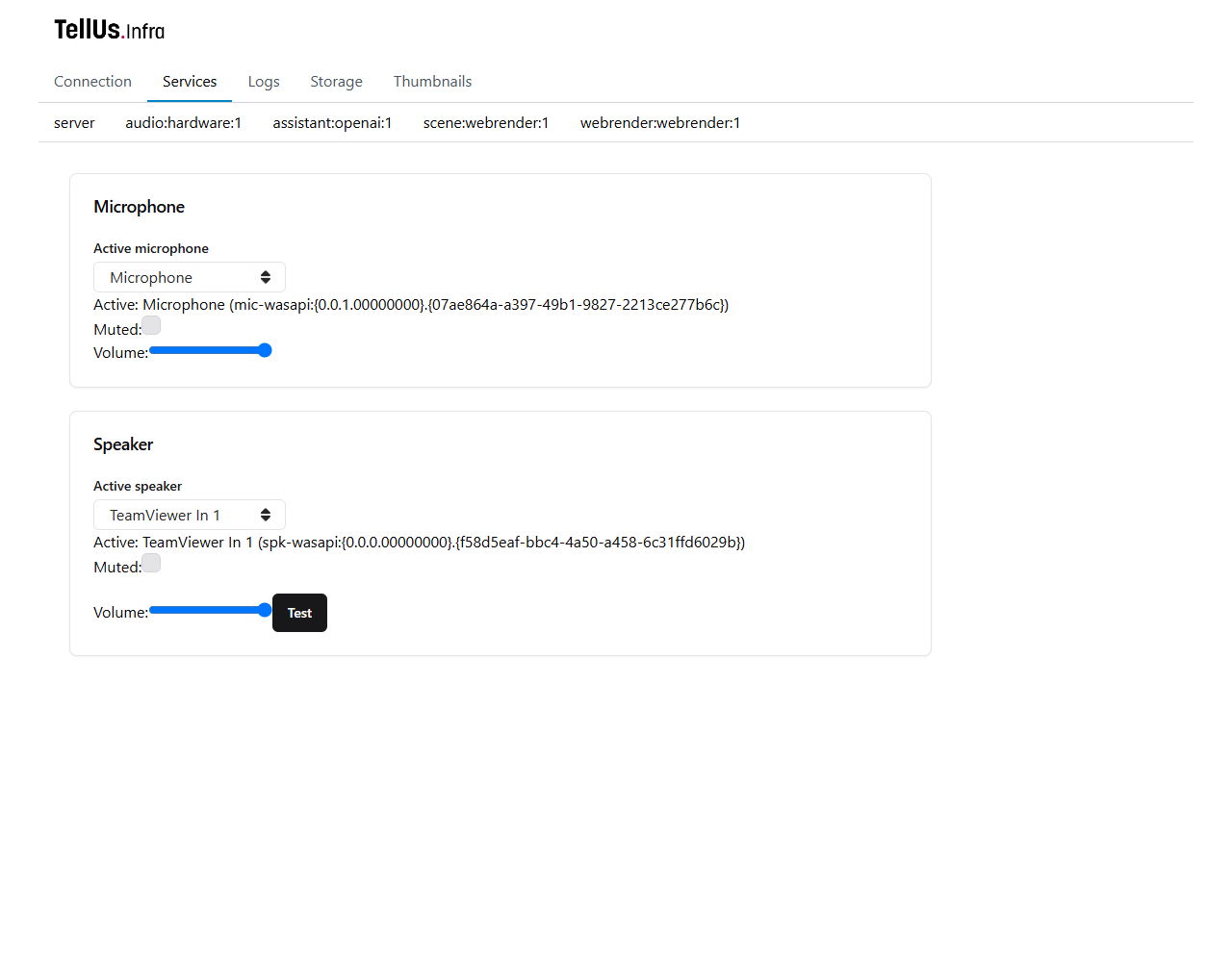
Choose your site's devices; screenshot names are examples.
Audio checks in the dashboard
- Select the correct Active microphone. Check the receiver is connected, paired with the transmitter, and not muted on the hardware.
- Check Muted and Volume for the microphone. An active device can still be muted or have zero gain.
- Select the correct Active speaker. Watch for HDMI, remote-desktop, or virtual audio outputs being selected instead of the globe speakers.
- Check the speaker's Muted setting, volume, Windows output volume, and the physical speaker/amplifier.
- Click Test to play the built-in sound through the selected speaker.
- Return to the home page, check listening mode and microphone state, and try a short spoken question.
Test checks local playback independently of AI. If it works, diagnose the assistant next.
Devices are discovered at startup, initially using Windows defaults. Connect missing hardware before restarting, then recheck the active choices.
Symptoms and next checks
| Symptom | Next check |
|---|---|
| No sound from Test | Active speaker, service mute/volume, Windows routing, physical speakers and cables. |
| Test works; typed assistant reply is silent | Selected assistant service, internet/API connection, model compatibility, and assistant/server logs. |
| Typed chat works; speech gets no response | Correct active microphone, receiver mute, input gain, home-page mute, and listening mode. |
| Microphone is unmuted but the assistant waits | With automatic responses off, finish by muting. In hold mode, release the talk button/key. |
| Is speaking never changes while talking | Input may not reach the assistant. Recheck microphone/routing and the selected assistant/audio services. |
| Is speaking changes but replies do not start | Check automatic-response mode, end-of-turn mute, internet connection, and assistant errors. |
| Replies stop when listening begins | Unmuting through the home audio controls cancels the current assistant response/playback. Finish listening before expecting a new reply. |
| Assistant reacts to its own voice or room noise | Move the microphone away from speakers, lower unnecessary gain, or use hold-to-talk. |
| Talk key does nothing | Focus the webpage, leave text inputs, and check the configured key. |
| New hardware is absent from dropdowns | Restart with the devices connected. |
| Voice/language drifts | Check profile rules and browser model/voice overrides; rehearse the alternatives in scenario guidance. |
Use Stop Talking! before retrying a stuck response.
Is speaking / Has spoken show assistant speech detection, not input-volume levels. Audio comes from the globe computer, not the operator tablet.
Services or remote dashboard do not connect
First try http://localhost:3000/ on the globe computer. If that works while the tablet fails, check the hostname/IP, configured frontend port, shared network, and Windows firewall/network reachability.
Open Dashboard → Connection to check the service connection. The local default is ws://<globe-host>:8000; use the installation's configured server URL and port. Check service selections on the home page if the dashboard is connected but chat, audio, touch, or scene actions are unavailable.
For unavailable AI, check internet, API key configuration, account access, and assistant logs. Keep the key private.
Datasets do not load
Check:
assetsPathpoints at the directory containing the rootindex.json.http://<globe-host>:3002/index.jsonis reachable using the configured port.- The descriptor is listed and reachable, and its media paths resolve relative to the descriptor folder.
- JSON parses, IDs are unique, and the asset has a supported
equirectlayer. - The globe renderer was reloaded/restarted after changes to the catalogue.
- The authoritative renderer is running and registered as the selected scene service.
After a slow asset-server startup, reload the globe renderer; refreshing only the tablet may not update its catalogue.
For an unexpected image, load a known base, disable overlays, and reset rotation/image adjustments. Preserve the site's calibrated projection.
Profiles or quick topics do not persist
Check that the relevant scenario/thumbnails service is running and can write to its working directory. In a package, persistence normally uses infra/apps/server/scenarioProfiles.json and thumbnails.json.
Invalid/unreadable saved JSON can produce empty profiles or default topics. Back up the files and check their schema before replacing them.
If you upgraded into a new package folder, copy the saved files from the old package with both apps stopped. See backup and copying.
Logs and useful support information
The frontend Dashboard → Logs page shows service events for the current connection. Launcher output in hidden or shared console mode is saved under the package's logs folder, for example server.log, frontend.log, webrender.log, webrender-web.log, and tellus-data.log. Separate-console mode uses its individual windows instead.
For a reproducible report, record the package version, service IDs, active device names, model/voice if selected, the exact prompt, asset ID, observed result, and relevant error message. Review logs before sharing them, and exclude real keys and private conversation content.