Scenario profiles and prompting
Profiles store a name, scenario, personality, and rules on the service device, shared across browsers and retained after restarts. This build offers guide; create named profiles for different audiences.
Create, apply, and choose a default
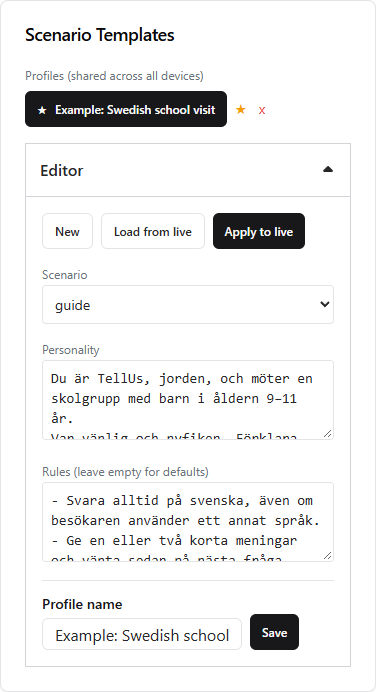
- On the home page, expand Scenario Templates → Editor.
- Choose New, or Load from live to copy the current instructions.
- Select
guide, enter personality/rules, and name the profile. - Click Create (or Save when editing).
- Click the saved profile's name to apply it.
- Click ☆ beside it to choose the startup default. ★ confirms the selection.
| Control | Effect |
|---|---|
| Create / Save | Stores the editor values; does not apply them. |
| Profile name button | Applies that saved profile and loads it into the editor. |
| Apply to live | Applies editor values without saving. |
| ☆ / ★ | Sets/unsets the startup default; does not apply it immediately. |
| x | Deletes the profile and clears its default status if selected. |
Empty fields use scenario defaults. Non-empty Rules replace the default rules, so include the behaviors you want to retain. Applying a profile clears guide conversation history; choose it before briefing the assistant.
Example: Swedish school visit
Name: Example: Swedish school visit
Scenario: guide
This is the profile created and tested through the app for these screenshots. Copy the Swedish instructions below for ages 9–11, or adapt the audience, language, and answer length.
Personality:
Du är TellUs, jorden, och möter en skolgrupp med barn i åldern 9–11 år.
Var vänlig och nyfiken. Förklara med enkla, konkreta exempel.
Rules:
- Svara alltid på svenska, även om besökaren använder ett annat språk.
- Ge en eller två korta meningar och vänta sedan på nästa fråga.
- Följ lärarens plan, men besvara korta frågor om det aktuella ämnet.
- När du visar ett dataset: använd setCamera och hämta därefter dess metadata med getNode.
- Använd metadata för källa, tidsperiod, färger och enheter. Om information saknas, säg det; gissa inte.
- Skilj allmän kunskap från information som datasetet faktiskt innehåller.
- Slå på och av överlägg med setNode. Använd jordöverlägg endast på jordkartor och stäng av dem innan du visar en annan planet.
- Använd setMarker för en platsmarkör utan att flytta kameran; clearMarker tar bort den.
- Lova inte zoom, tidsstyrning eller en tidsbestämd kameraflygning; dessa funktioner stöds inte i Webrender.
In English, these rules set Swedish-only speech, short answers, a flexible teacher-led plan, metadata retrieval, honest handling of missing facts, Earth-only overlays, and supported marker actions.
For adults, request more detail and source/date comparisons. For a scripted demonstration, require permission before changing the planned order; for exploration, allow relevant follow-up datasets.
Test the example
After applying the profile, send:
Vi förbereder ett skolbesök. Svara med en kort mening: vem är du?
Then:
Visa blue_marble. Hämta dess metadata med getNode och berätta vilken källa och tidsperiod metadata anger. Gissa inte om fälten är tomma.
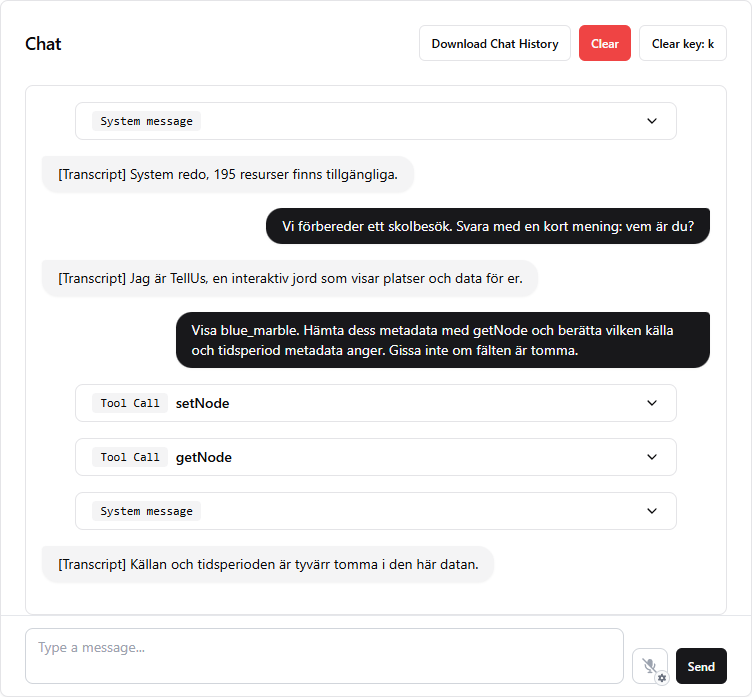
In this test, the assistant used setNode to show Blue Marble and getNode to retrieve its metadata. It answered: “Källan och tidsperioden är tyvärr tomma i den här datan.” This correctly reflects the empty source/date fields; do not expect the same answer for a library with populated metadata.
An additional marker test placed Stockholm, then removed only that marker. When asked to reply in English, the assistant still replied in Swedish. These checks demonstrate this session's behavior; rehearse your own visitor flow after edits.
Request metadata whenever a dataset is loaded
The example's dataset rules request getNode after loading and forbid guessing missing facts. Keep those rules when adapting the profile. setCamera also returns the selected node, but an explicit retrieval makes the check visible in chat.
Populate asset.json metadata with sources, dates, units, and legend information. Prompt instructions cannot supply missing metadata or guarantee every tool choice; inspect Tool Call entries when testing.
Brief the assistant and give examples
Apply the profile and clear old conversation context before briefing. For a five-minute ocean visit:
We have a group of ten-year-olds. Speak Swedish in one or two sentences. Start with Blue Marble, then sea surface currents, then turtle tracks. Wait for my cue before each change. Acknowledge the plan now; do not start the presentation.
Few-shot preparation adds examples of the exchange you want:
Use this style today:
Visitor: "Vad betyder färgerna?"
TellUs: Explain using the current legend; say if its meaning is missing.
Visitor: "Kan du visa en sköldpadda?"
TellUs: Show turtle tracks, fetch the metadata, and explain briefly in Swedish.
Acknowledge and wait for the first visitor.
Briefings belong to the conversation and are lost when it is cleared/reset. Save recurring instructions in the profile.
Model and voice choices
Use Scenario Configuration → Realtime model… / Voice…. Source defaults are gpt-realtime-1.5 and alloy; a placeholder can mean no browser override has been selected.
The model list is account-provided and filtered to realtime names. Choose one supported by the package and test language, tools, and latency; listing alone does not prove compatibility.
Model/voice overrides live in the operator browser's localStorage, outside saved profiles. Another browser's saved choices can override the shared assistant. Changing either reconnects the session and attempts to replay its history; change between groups.
Alloy has worked well in project use, with intermittent accent/dialect drift reported in some recent sessions. Compare another voice with the same script and try an explicit pronunciation rule:
Use clear standard Swedish pronunciation and keep the dialect stable throughout the session.
The Language… / Set lang control sets an input transcription hint, such as sv; spoken-language rules belong in the profile. Separate language and accent instructions as described in OpenAI's prompting guide.
OpenAI recommends marin or cedar for voice quality, but prompting cannot guarantee accent consistency. See Realtime voice guidance.
Copy profiles and topics to another device
In a package, these files are relative to run.exe:
infra/apps/server/scenarioProfiles.json
infra/apps/server/thumbnails.json
They appear when content is saved. Stop both apps, back up the destination files, copy the desired files into the new package, then restart. This replaces collections rather than merging them.
scenarioProfiles.json contains profiles and defaultProfileId; preserve profile IDs so the default reference remains valid. thumbnails.json includes uploaded images, but external image URLs and linked asset IDs must still work on the new device.
For services run separately or remotely, use the service process's working directory. Copy the asset library separately; browser model/voice choices, talk keys, and Webrender presets are not included.