TellUs AI
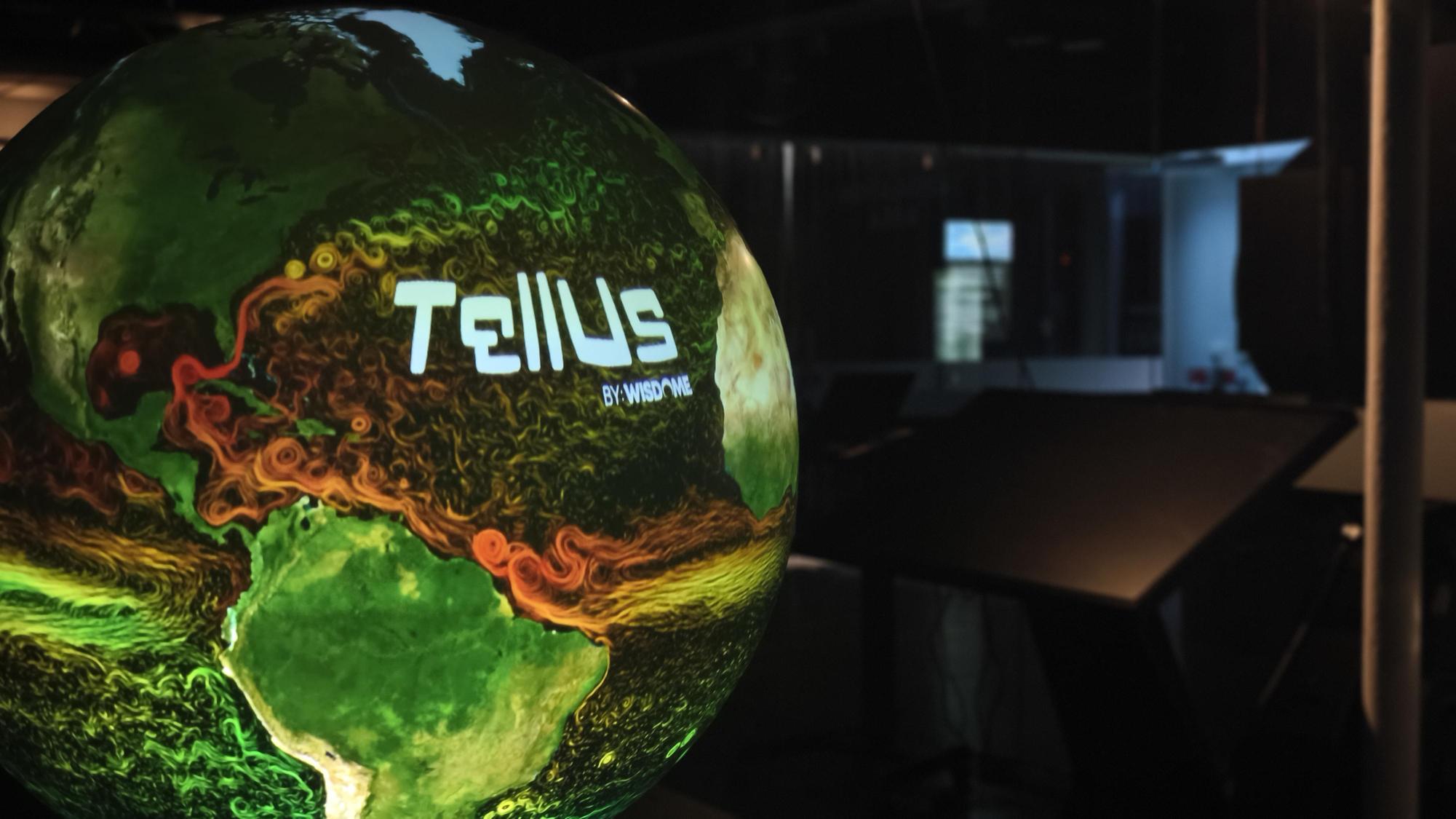
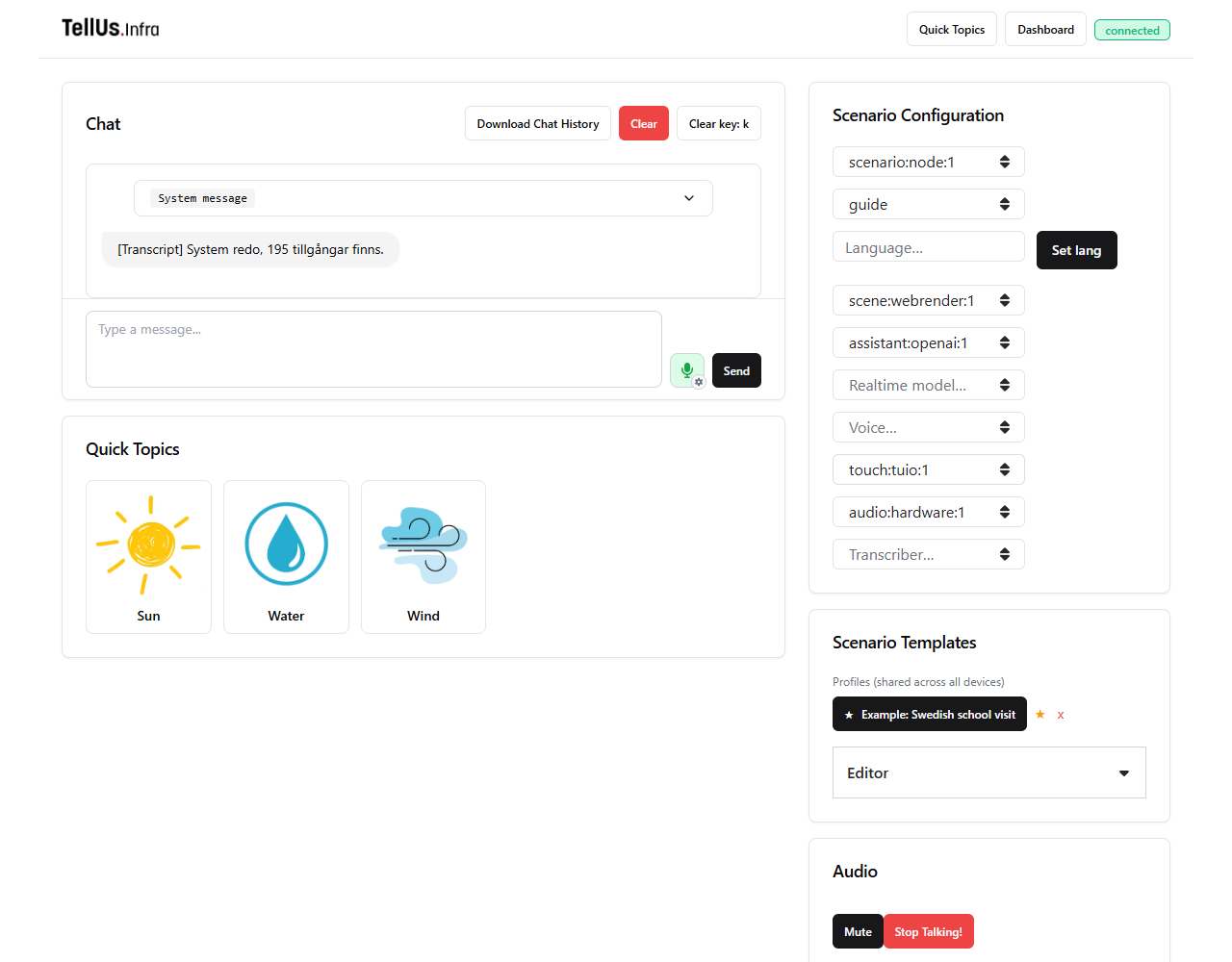
Talk to TellUs while it loads datasets, changes the globe view, toggles overlays, and places geographic markers. Use a tablet or laptop for chat, scenario profiles, quick-topic buttons, and device controls.
Start here
For an installed globe, start with daily operation and the tested school-visit profile.
| Task | Guide |
|---|---|
| Install the package and connect a tablet | Setup and configuration |
| Speak, type, or prepare a new group | Daily operation |
| Save a profile, set its default, and brief the assistant | Scenario profiles and prompting |
| Create image buttons for recurring topics | Quick topics and thumbnails |
| Add, remove, or reorganize datasets | Asset library |
| Browse dataset thumbnails and IDs | TellUs data catalogue |
| Adjust the globe or manage markers manually | Webrender dashboard |
| Understand assistant actions and limits | Assistant tools |
| Fix audio, connection, or asset problems | Audio and troubleshooting |
How the parts fit together
The launcher starts the services, browser interfaces, asset server, and globe renderer. The scenario service connects the assistant to audio, touch, and scene controls. AI conversation requires internet access.
The dashboard controls audio hardware on the globe computer, not the tablet's microphone. Profiles and quick topics are shared by connected operators.
Default addresses: http://localhost:3000/ for the frontend and http://localhost:3001/?display=screen for a second-screen preview. On a tablet, replace localhost with the globe computer's hostname/IP; see setup.
Version and scope
This is an update based on the October 2026 release.